

Minecraft Java offers two ways to play: open a single-player world to LAN, or run a separate dedicated server. ConnectTogether connects players over the internet; the world or server stays on the host's computer.
These options are different from Minecraft's “Direct Connection” button. Friends use that button to join either type of server.
Before you start
- Everyone needs ConnectTogether and the same Minecraft edition: Java or Bedrock.
- Client and server versions must be compatible. For modded games, agree on the modpack and mod loader.
- The host needs enough resources for Minecraft, ConnectTogether and the server, and must keep the computer online.
- A ConnectTogether room and a game world are separate. Make the world available, then let friends join the room and connect to the game.
Java option 1: open your world to LAN
Use this to invite friends into an existing single-player world without installing a separate server.
Host instructions
- Start Minecraft Java and open the single-player world. Do not stay at the main menu.
- Press Esc and find “Open to LAN”.
- Choose multiplayer settings and confirm. In versions with separate world settings, find LAN mode in the multiplayer settings.
- Note the port Minecraft assigns to this session in case you need to check it manually.
- Click “Create a room” in ConnectTogether and choose Minecraft Java.
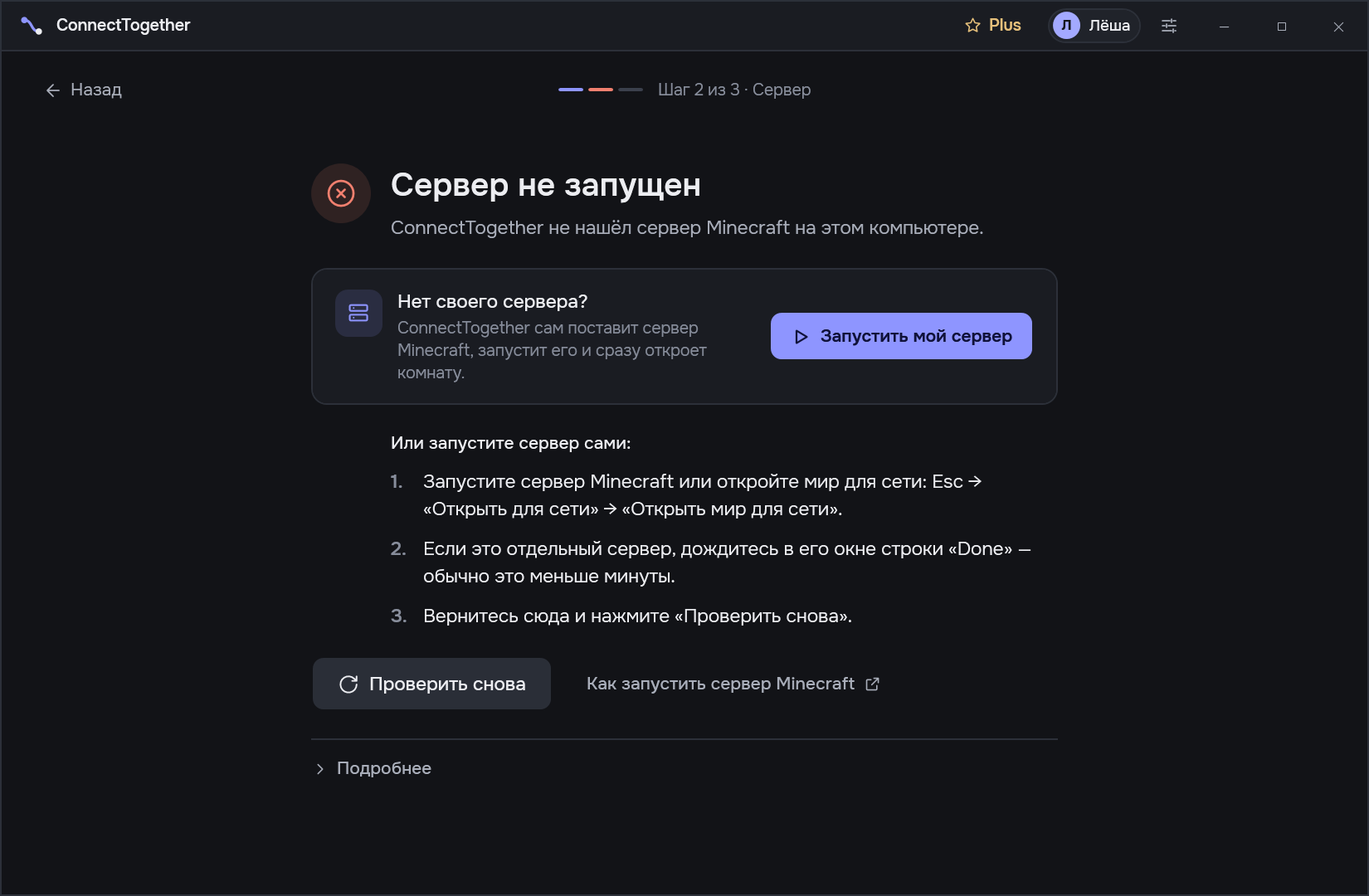
- If “Server is not running” is already displayed, return after opening the world to LAN and click “Check again”.
- After the check succeeds, send friends the room invitation.
The name and location of LAN settings vary by Minecraft version. Older versions use “Esc → Open to LAN → Start LAN World”; newer versions may put multiplayer controls in world settings.
What must stay running
The host must not leave the world or close Minecraft. The world server runs inside that game session. Minimising the window does not leave the world.
Keep ConnectTogether running too. Closing the game removes the game server; closing ConnectTogether interrupts the room connection.
Reopening a world to LAN may change its port. Check the server again and make sure the room uses the current port, rather than the previous session's value.
Java option 2: a separate server
A dedicated server runs as a separate process. Use it for a separate server world, console administration or hosting without the host's single-player world open.
Install and start through ConnectTogether
- Choose Minecraft Java when creating a room.
- If no server is found, click “Start my server”.
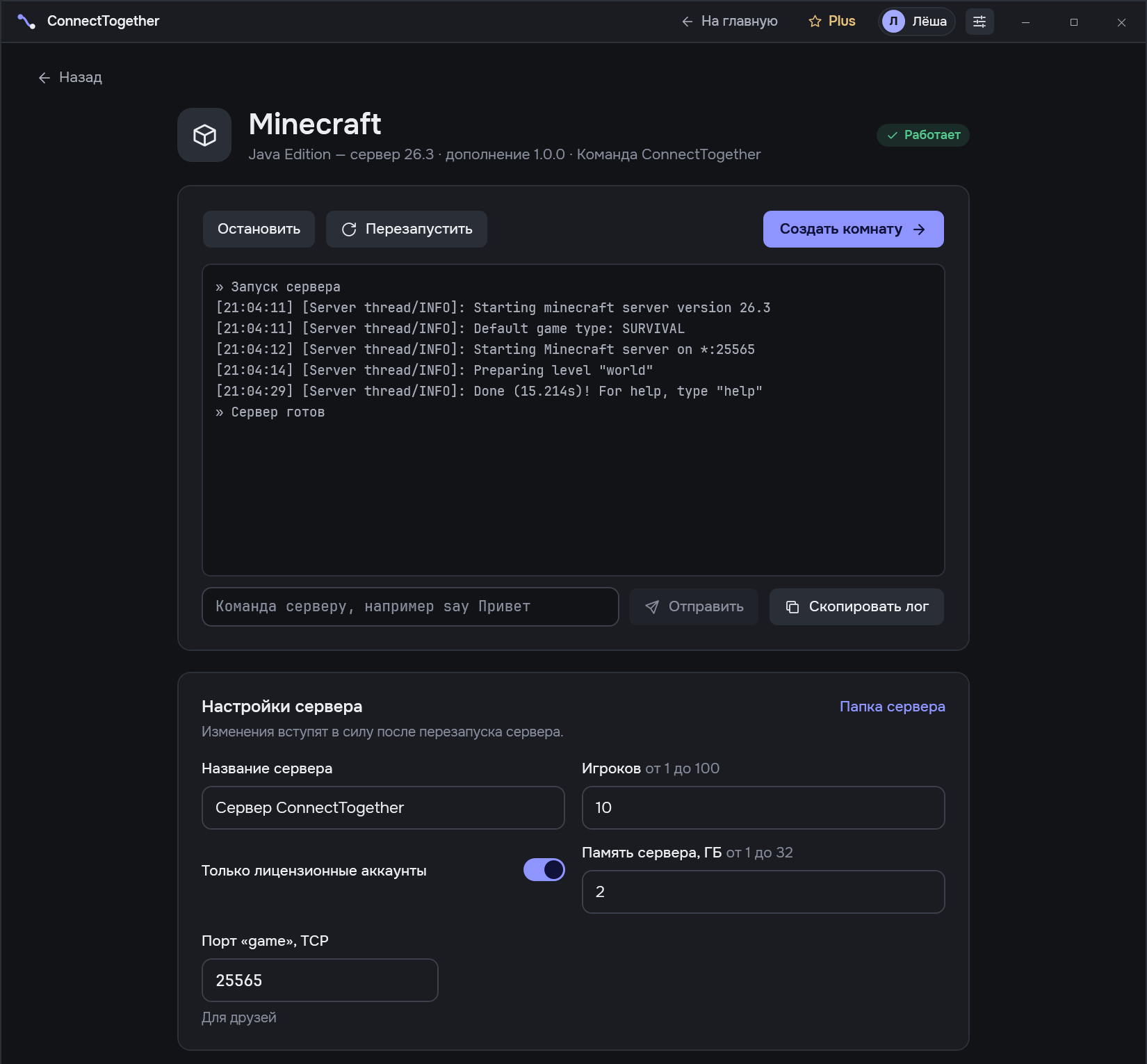
- Wait for installation. If a server licence is shown, read it and confirm acceptance yourself.
- Check the available settings and port.
- Start the server and wait until it is ready. Creating a new world can take time.
- When the room opens, copy the invitation and send it to friends.
If you already have a server
Start it yourself and wait for readiness. On a standard Java server, look for Done in the console; an open window alone does not mean it is ready.
Choose Minecraft Java in ConnectTogether and click “Check again”. If it is not found, compare the actual server port with the room settings. If several servers are running, select the correct one.
Third-party server distributions may have different settings. Follow their developer's installation instructions.
How friends join Minecraft Java
- Start ConnectTogether and sign in through Steam.
- Join the host's room using a code, link or friend card.
- Copy the address under “How to join the game”.
- Start a compatible Minecraft Java version.
- Open “Multiplayer” → “Direct Connection” and paste the address from your own room.
- Connect. Any server password, permission or player allowlist is managed separately by the host through the game.
Do not put the room code into Minecraft's address field. ConnectTogether uses the code; Minecraft needs the server address.
An address starting with 127.0.0.1 is normal. Do not replace it with the host's public IP or another participant's address. Use the instructions on your own computer.
Minecraft Bedrock
Choose the separate Minecraft Bedrock option in ConnectTogether. Java and Bedrock use different servers; matching world names does not make them compatible.
- Download the Windows server from the official Bedrock Dedicated Server page.
- Extract it into its own folder and run bedrock_server.exe.
- Wait for Server started.
- Return to ConnectTogether, choose Minecraft Bedrock and check again.
- Send invitations once the room is created.
Friends join the ConnectTogether room, then open “Play” → “Servers” → “Add Server” in Bedrock. Enter the address and port from the room in their separate fields. Support for adding custom servers depends on the platform; these instructions are for a computer running ConnectTogether.
Keep bedrock_server.exe open while players need the server.
Troubleshooting
- “Server is not running”: check that the world is open to LAN or the dedicated server is ready, then check again.
- A friend joins the room but not the game: check their displayed address, the host's port, Minecraft version and edition.
- Compatibility error: compare exact client and server versions; also compare mod lists and versions.
- Connection drops when the host returns to the menu: reopen the world to LAN and check its new port.
- The server window was closed: restart it and wait until ready. A room does not replace a game server.
See connection troubleshooting for further checks.
LAN and direct connections are described in the Minecraft guide. World-settings changes are covered in the Java Edition 26.3 notes.
