

A room brings players, voice and chat together and provides access to the host's game server. The game server must also be running: opening a room does not create a world in every game.
What everyone needs
The host runs the game server or opens a world to the local network. Every friend needs ConnectTogether and a compatible game version.
Prepare the server before checking it, or use the game's addon to install it. Minecraft Java can share a single-player world through Open to LAN. Rust requires a separate server.
Step 1. Start creating a room
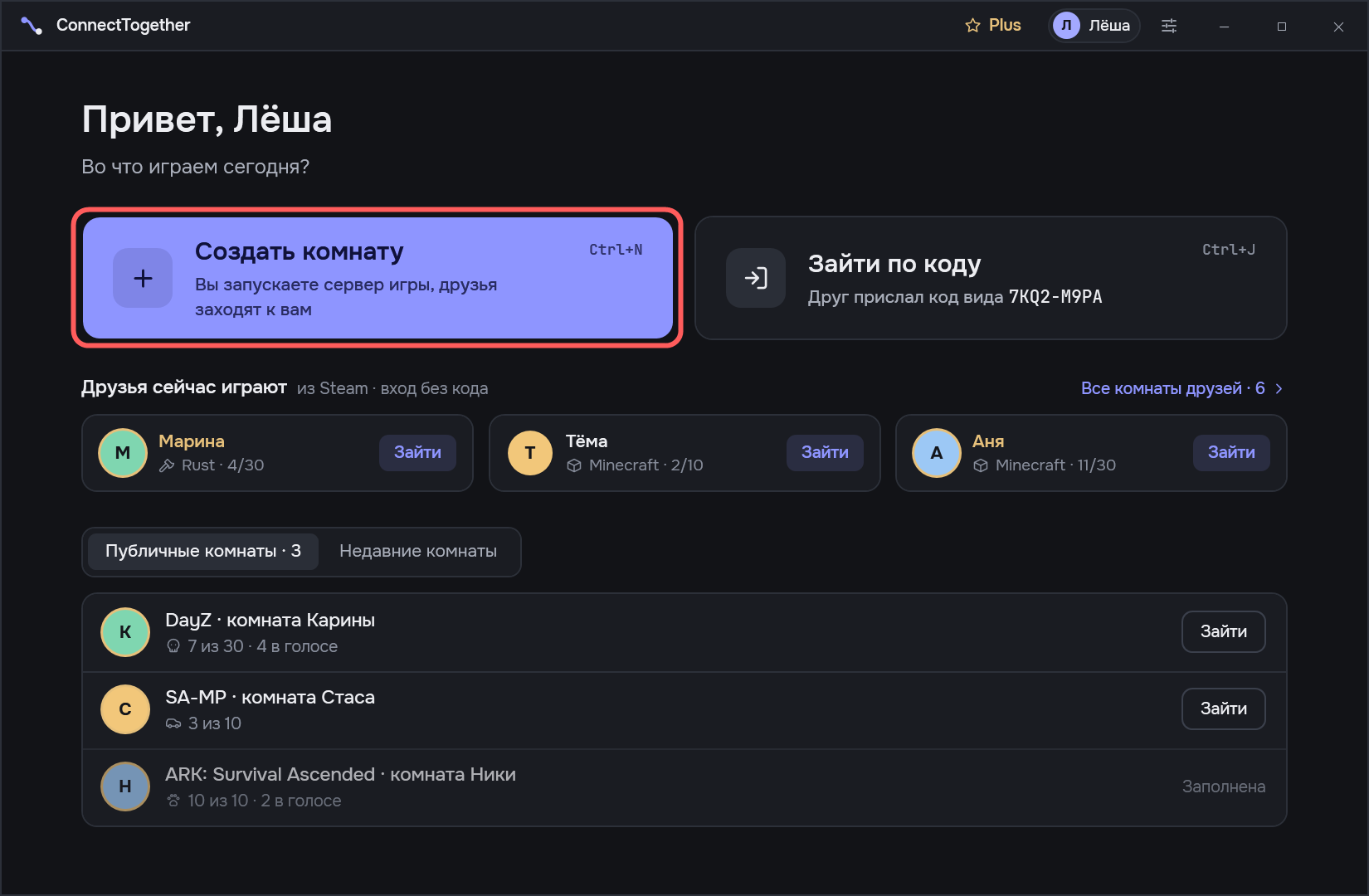
On the ConnectTogether home screen, click “Create a room”.
Step 2. Choose the game
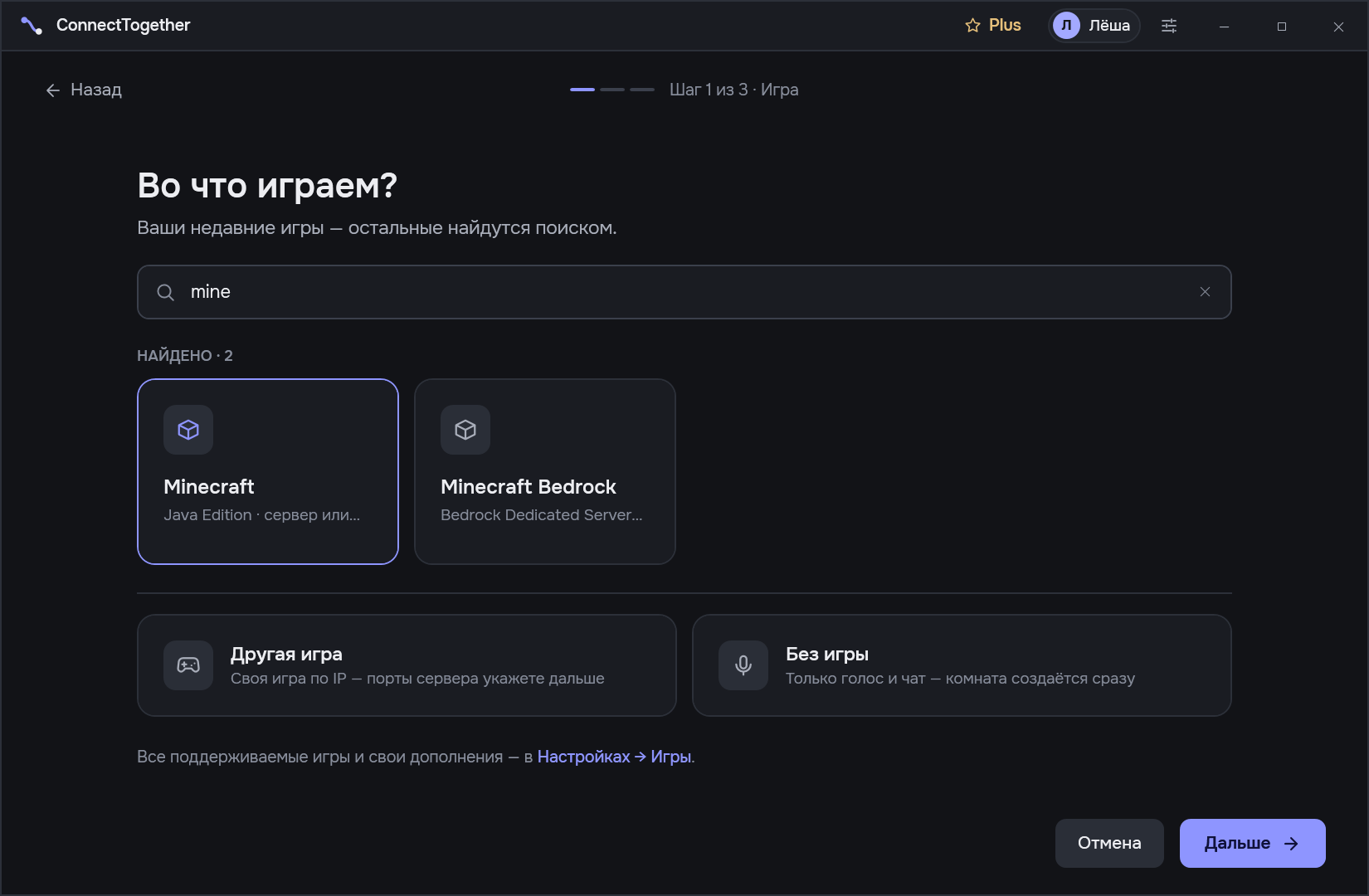
Choose the correct game and edition. Minecraft Java and Minecraft Bedrock are separate options. If your game is missing, check addons or use manual configuration.
Step 3. Prepare the game server
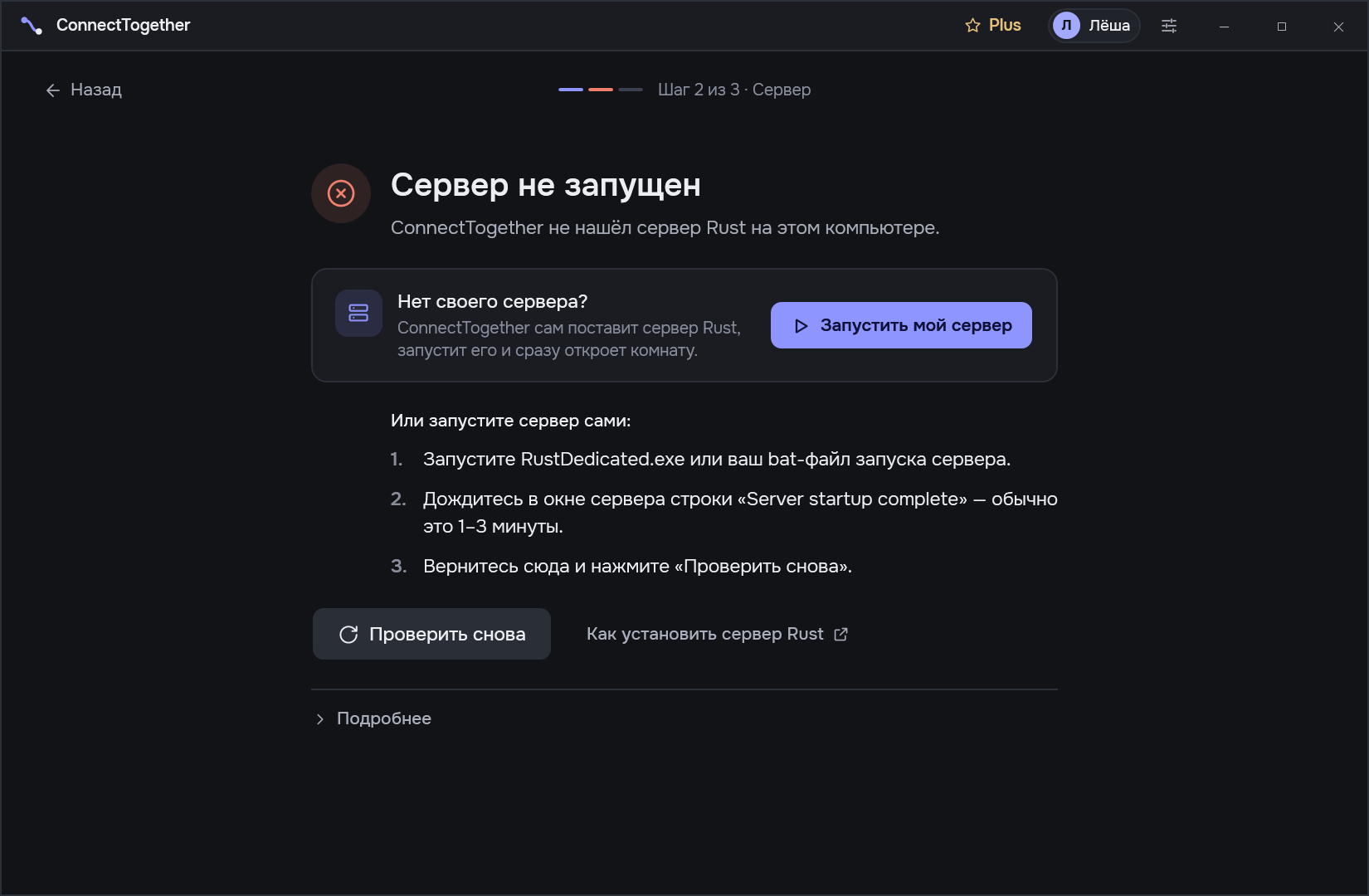
If the server is already running on this computer, the application checks its ports. Do not stop a server that is still starting just because the first check did not find it.
If you see “Server is not running”, start it yourself or choose “Start my server” if the addon supports that option. For a manually started server, return when it is ready and click “Check again”.
Step 4. If ConnectTogether installs the server
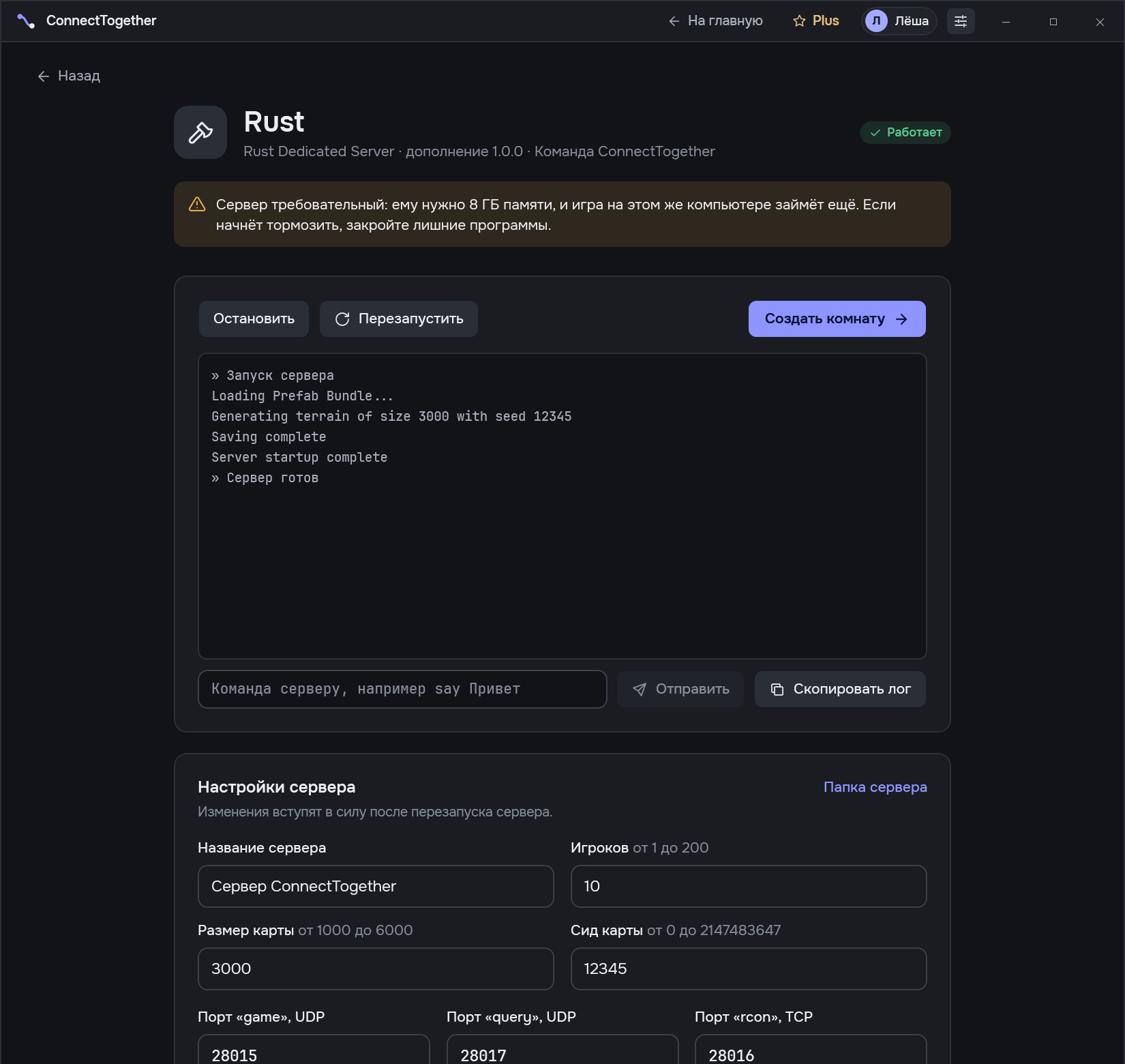
Wait for the files to download and install. Read any server licence presented to you and decide whether to accept it. Review the available settings and start the server.
Keep both the application and server running during preparation. The exact steps depend on the addon: instruction-only addons require manual startup, while automated addons may open the room when preparation finishes.
Step 5. Invite friends
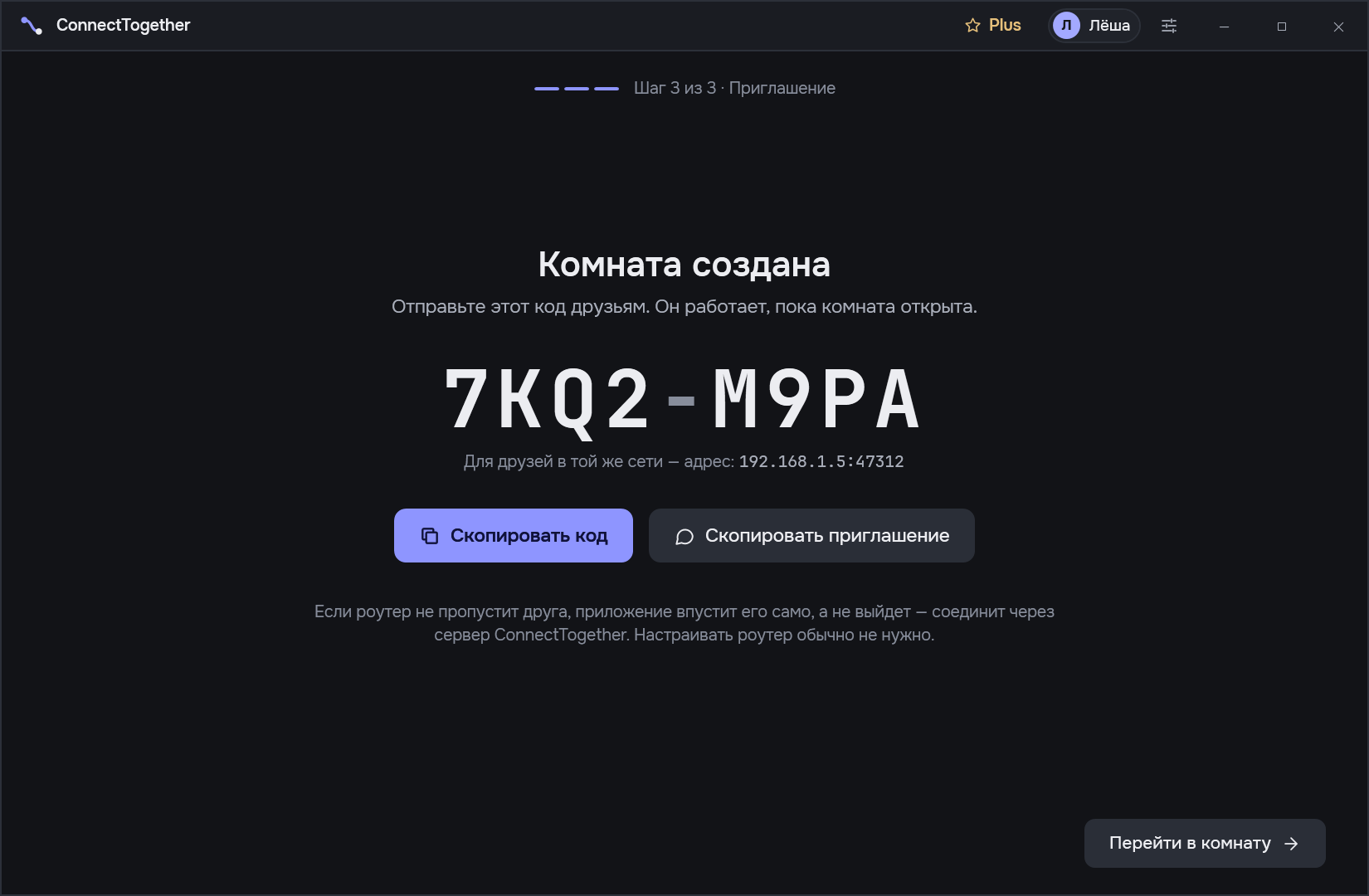
Copy the room code or invitation message and send it to the people you want to play with. Friends join in ConnectTogether first, then follow “How to join the game”.
What must stay running
- The host's computer and internet connection.
- ConnectTogether on the host's and players' computers.
- The game server, or the host's Minecraft Java world shared through Open to LAN.
You can minimise windows. Ending a process, leaving the world, stopping the server, putting the computer to sleep or losing the network may interrupt the game.
Check the result
Ask one friend to complete the whole process and enter the game. Appearing in the room list confirms only the first stage. Once that friend loads into the correct world, invite the others.
If the room works but the game does not respond, check server readiness and its port before recreating everything. See connection troubleshooting.
