

A ConnectTogether addon is an addon.json file describing a game server. The application performs the specified actions and creates a network room. A typical addon does not require programming.
Choose a type
To download and start the server through the application, use a manifest with a launch section. For a server the host starts manually, an instruction-only addon needs ports, host steps and friend connection instructions.
Start with instructions if installation and server management are not yet tested. Do not launch an arbitrary installer instead of the server process just to make a button appear.
Create the file in the editor
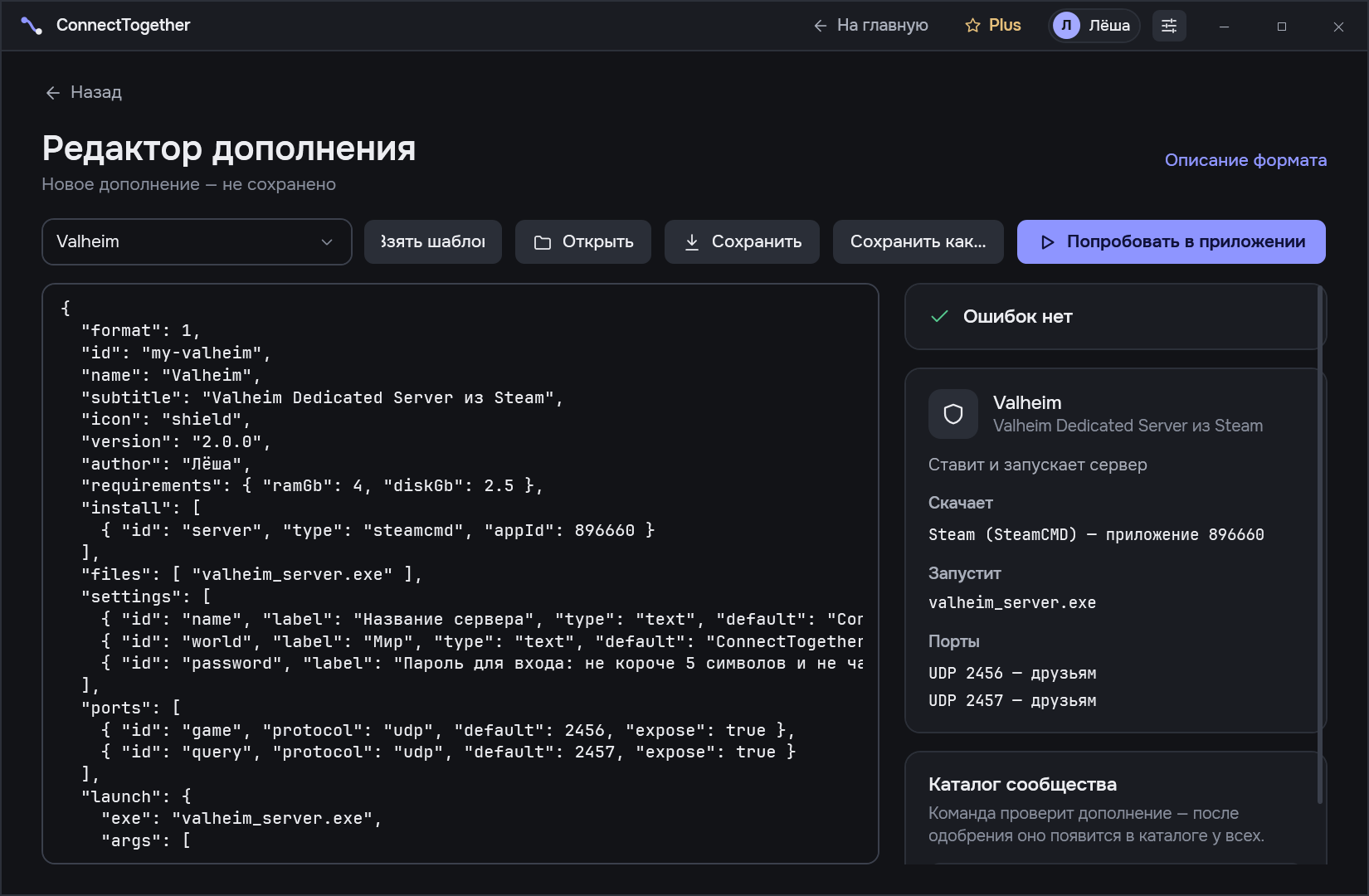
- Open “Settings” → “Games” → “Create an addon”.
- Select a similar game's template or open your own addon.json.
- Set a unique ID, name, version and author.
- Configure game ports and protocols from the server documentation.
- Write clear startup and joining instructions.
- For a managed server, configure installation, launch, readiness, logs and shutdown according to the format rules.
IDs distinguish addons and use lowercase Latin letters, numbers and hyphens. Built-in game and template IDs are reserved; choose a separate ID for your variant.
Review the manifest
- ports must match the real server. Expose game ports, not the administration console.
- join must describe what the friend does: the menu or console and the connection-line format.
- guide should make sense to someone who has never seen your computer or server.
- Readiness detection must trigger after the server is actually ready, not merely when its process appears.
- Shutdown must account for saving the world and stopping cleanly.
Downloads use official HTTPS sources with a hash for the specific file, or SteamCMD. Any licence must be accepted by the user, not silently through installation actions.
See the format reference and built-in examples.
Validate outside the editor
In VS Code, use the example's $schema entry for field suggestions. Download addon-check from the repository releases and run addon-check-win-x64.exe addon.json.
Fix every error, then add the file to ConnectTogether. Structural validation does not prove that the download, port or game connection works.
Test the full flow
- Install the server from a clean state if installation is supported.
- Check that the expected files download and the server actually starts.
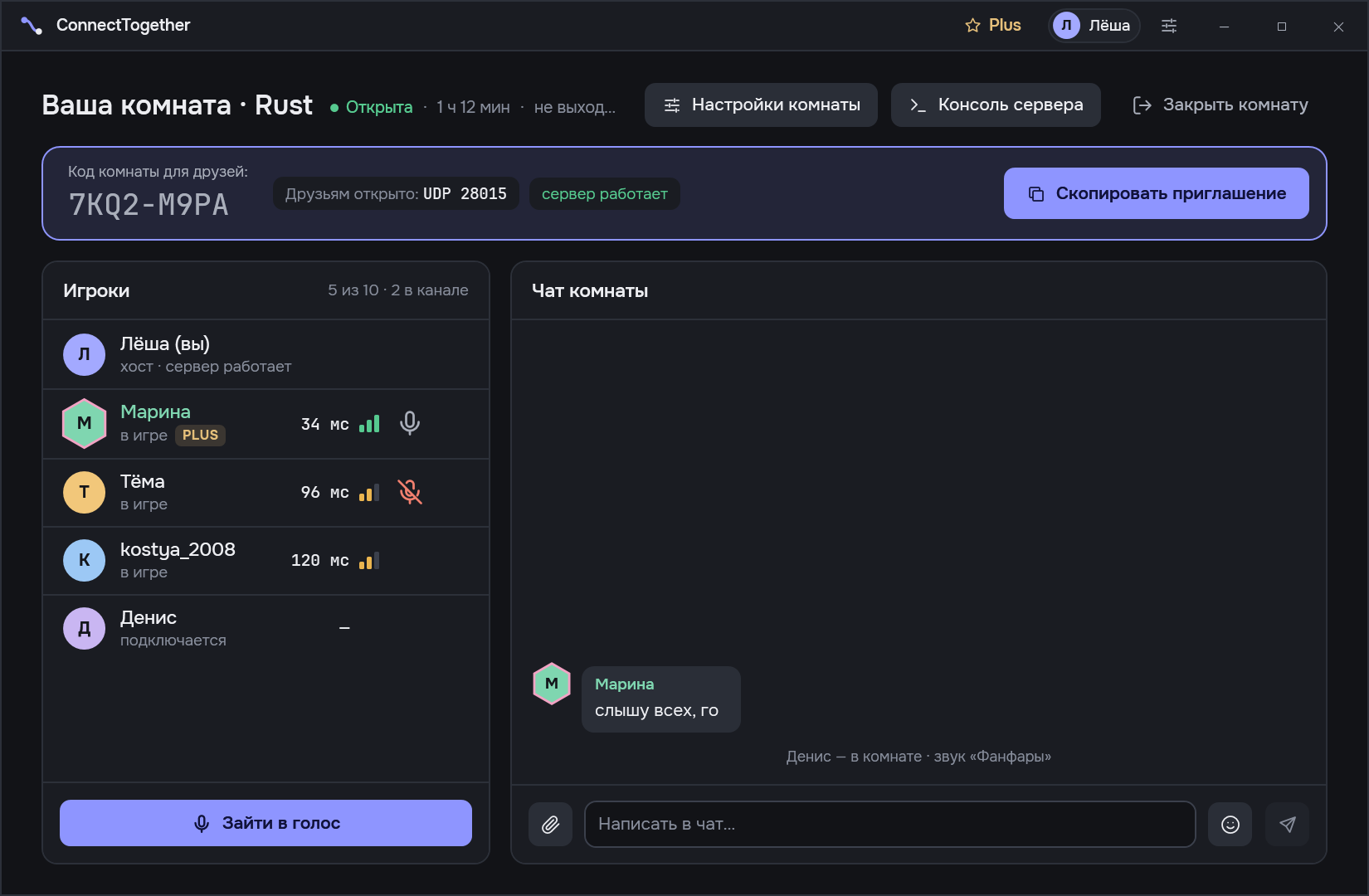
- Create a room and invite a friend on another computer.
- Ask them to follow your joining instructions exactly.
- Test clean shutdown and restarting.
- Record the server version and test result for your submission.
Publish to the catalogue
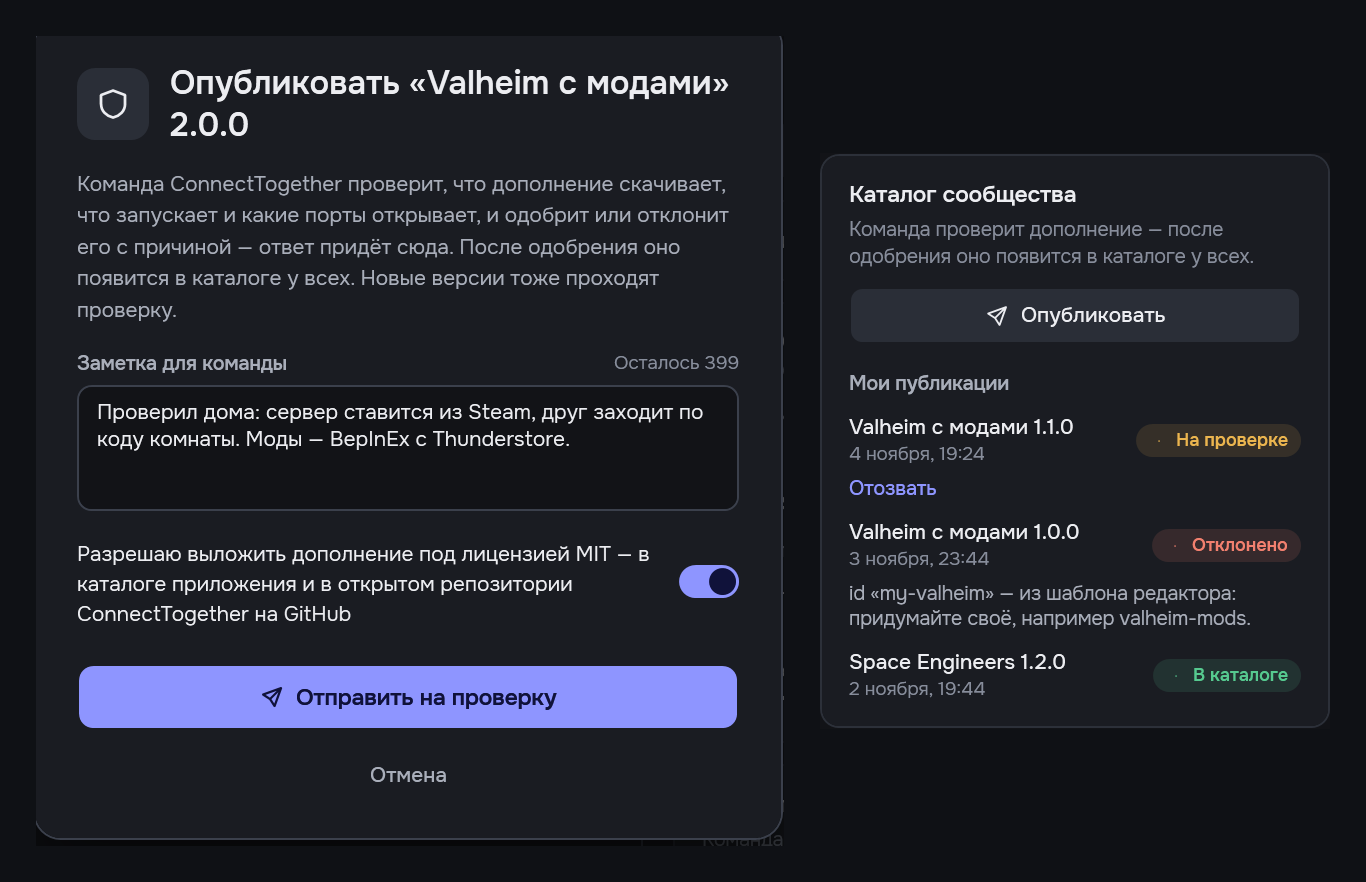
In the editor, open “Community catalogue” → “Publish”. Describe your tests and agree to publish under MIT. You must be signed in through Steam.
The team reviews your addon. Approved addons appear in the catalogue; rejected submissions include a reason. Track status in “My submissions”. Before review completes, you can withdraw or update a submission.
Publish a new version
Use the same ID and increase the version. Updates are reviewed again, and only the approved addon's author can submit them.
Publish addons from the application. Repository pull requests are for documentation, schemas and examples. The community catalogue is mirrored automatically; editing its folders is not a publication method.
See the contributor guide for rules and review criteria.
