

ConnectTogether transmits voice when it detects speech or while you hold an assigned key. Choose the mode in “Settings” → “Voice” after testing your microphone.
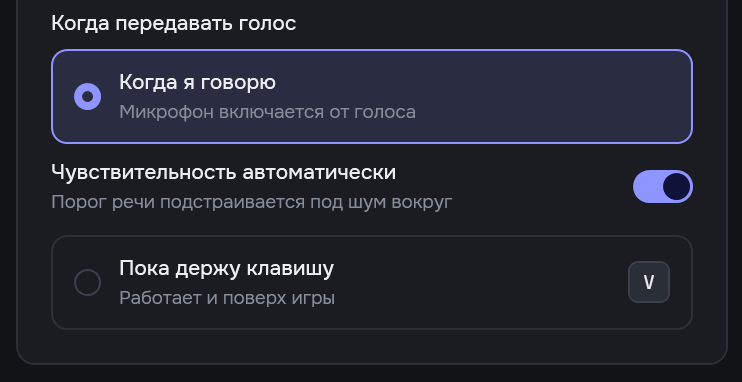
Voice activation
In “When I speak” mode, speech activates the microphone. Test normal speech, a quiet phrase and silence.
If the start of words is missing, adjust sensitivity. If every knock triggers transmission, check background noise and microphone placement. Evaluate automatic sensitivity in your normal room, not just complete silence.
Push-to-talk
In “While I hold a key” mode, voice is transmitted while the selected key is held. This is useful in noisy surroundings or when you do not want ambient sound transmitted continuously.
Choose a key that does not interfere with game controls. Test it on the desktop and then in the game. A brief press does not replace holding it in this mode.
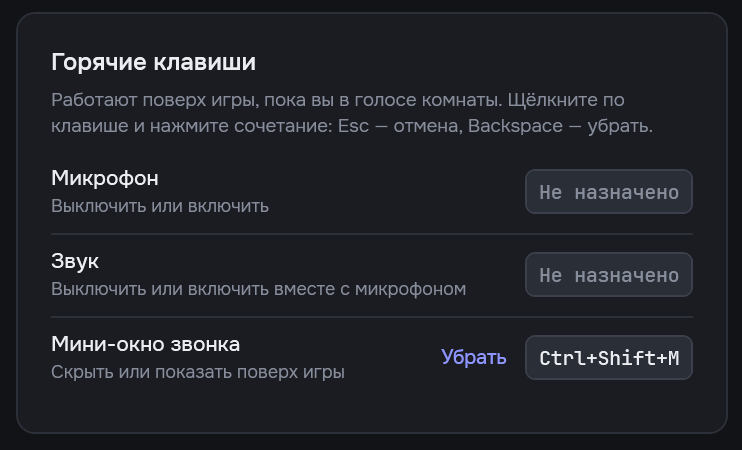
Assign hotkeys
- Find the action in hotkey settings.
- Select its shortcut field and press your preferred keys.
- Use Esc to cancel or Backspace to clear the shortcut if indicated by the interface.
- Test the action while in the voice channel with the game open.
If a key controls both an important game action and your microphone, choose another combination. After changing it, use the new assignment.
Noise suppression and automatic gain
RNNoise reduces hum, hiss and similar background noise. Automatic gain helps with quiet speech. Additional Plus modes are shown in application settings.
Change one parameter at a time and ask a friend to compare. If speech breaks up or sounds overprocessed, check processing in the microphone, Windows and ConnectTogether together.
If a hotkey fails in-game
Check that you joined voice, saved the shortcut and use the right key. Compare behaviour on the desktop and in the game. If it fails only in one game, tell support the game's name and the exact shortcut.
