

Host transfer moves the ConnectTogether room to another participant's computer so they can manage the room and connections.
It does not copy the game server, world, mods or saves. The new host must prepare their own server to continue playing.
Preparation
Agree with the participant who will take over. Check their computer and network can host the room. To continue the same world, prepare save migration according to the game's instructions.
Stop the game server correctly and make a backup before copying a world. Review configuration files before sharing them so you do not include RCON passwords or other secrets unintentionally.
Current host
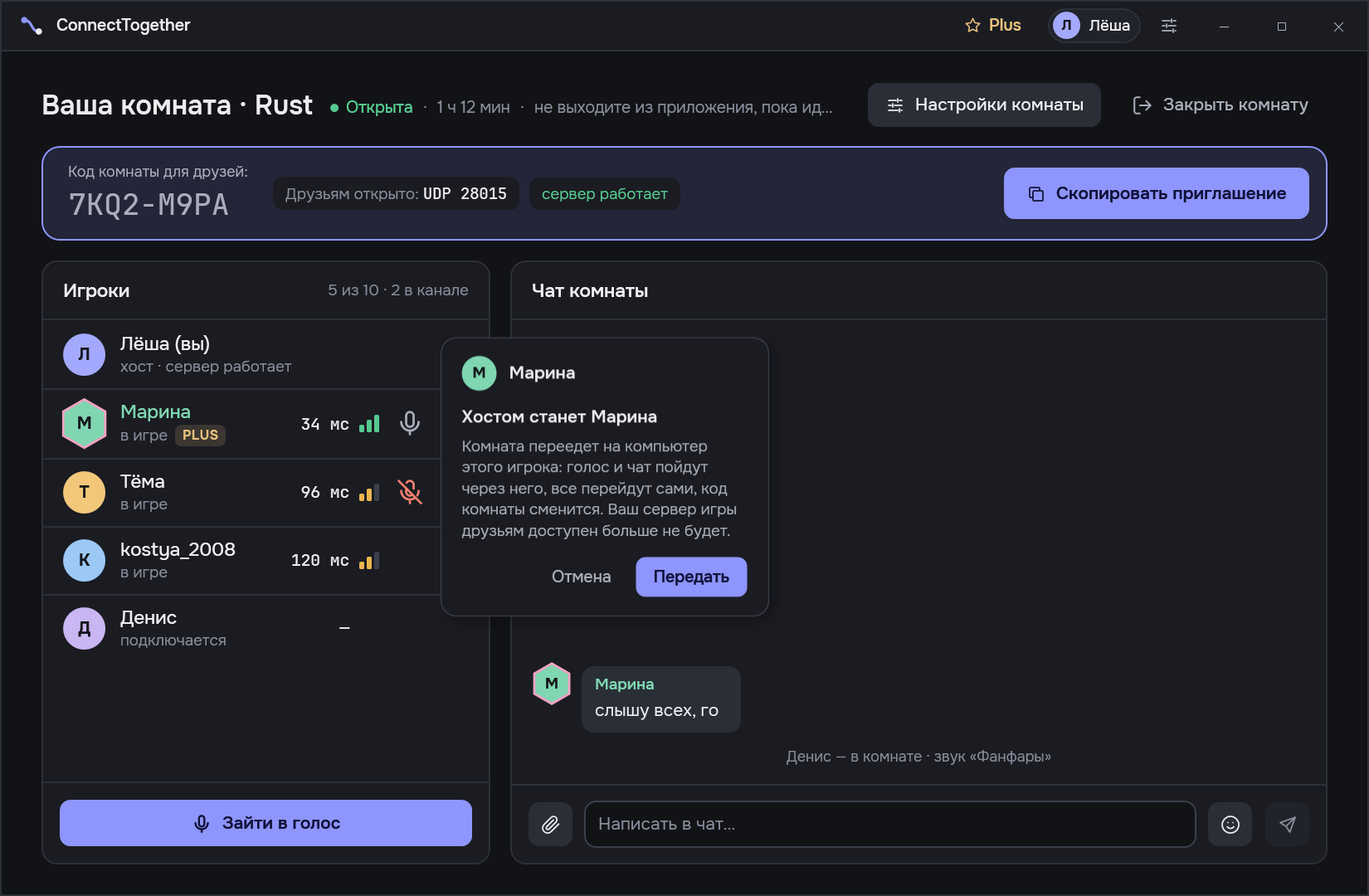
- Open the intended participant's menu.
- Choose “Make host”.
- Read the confirmation explaining the room and game server changes.
- Confirm and wait for the recipient's response.
New host
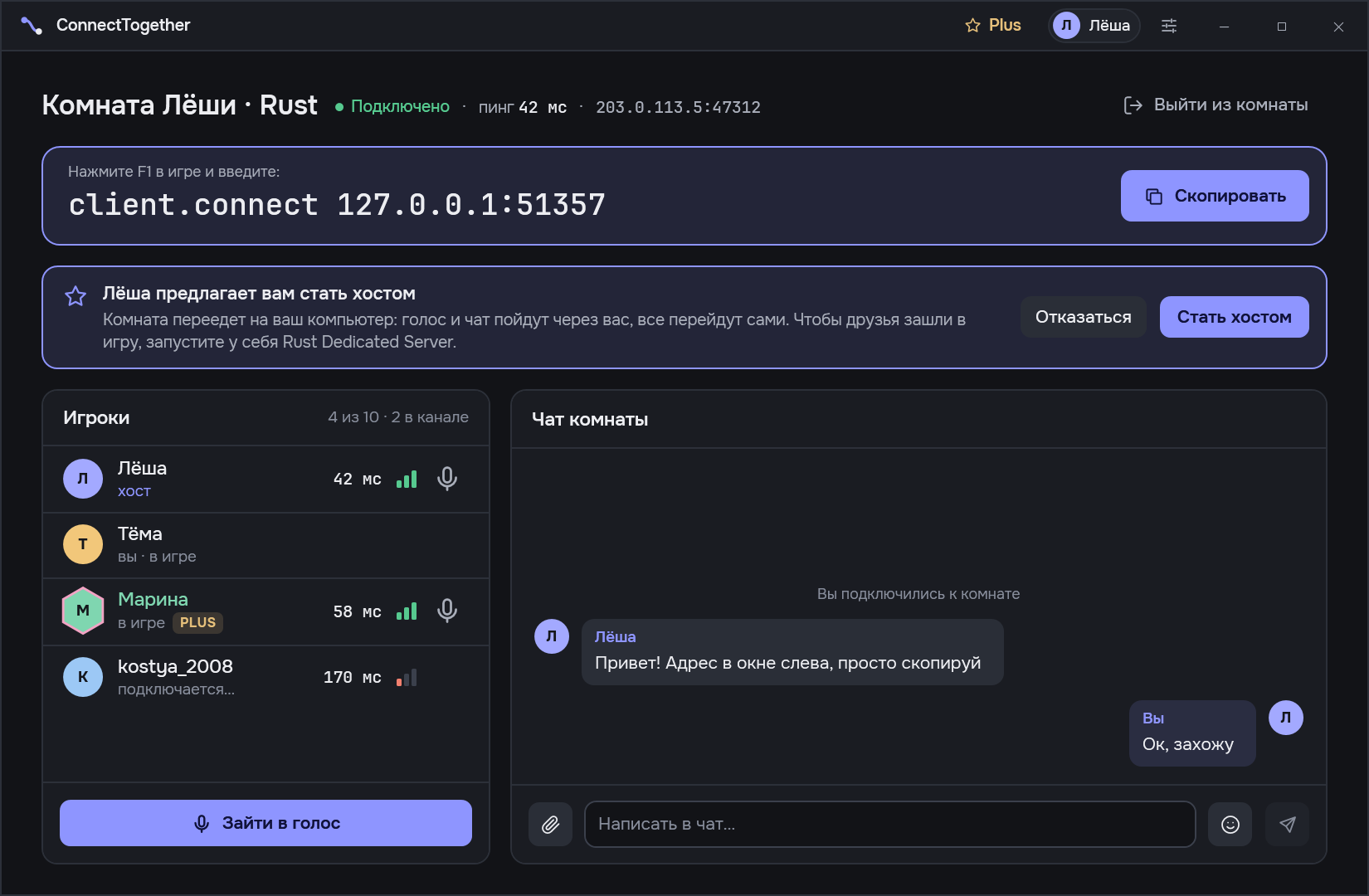
Read the offer before accepting. You become the room host; for friends to enter the game, start the corresponding server on your computer and check its game ports.
Decline if you are not ready and arrange a later transfer. Accepting does not create a copy of the old host's world.
After transfer
Participants move to the new host and the room code changes. Use the current invitation for new players. Access to the previous host's game server is not automatically maintained through this room.
Ask one friend to test the game after the new server starts. If voice and chat work but the game does not, check the new host's server and ports first.
To end a session, a transfer is unnecessary: warn players and stop the server correctly. To continue on another computer, plan world migration separately.
