

Rust needs a dedicated game server and a ConnectTogether room for it. Running the Rust client alone does not start a server.
Before you start
- The host needs resources for Rust Dedicated Server, ConnectTogether and, if playing, the Rust client.
- Players need a compatible Rust client. Installing a server through SteamCMD does not provide access to the game itself.
- The first download and world generation may take a while. Check server status rather than just whether a window appeared.
- If you use a custom server distribution, check its settings and game port first.
Option 1: start a server through ConnectTogether
- Click “Create a room” and choose Rust.
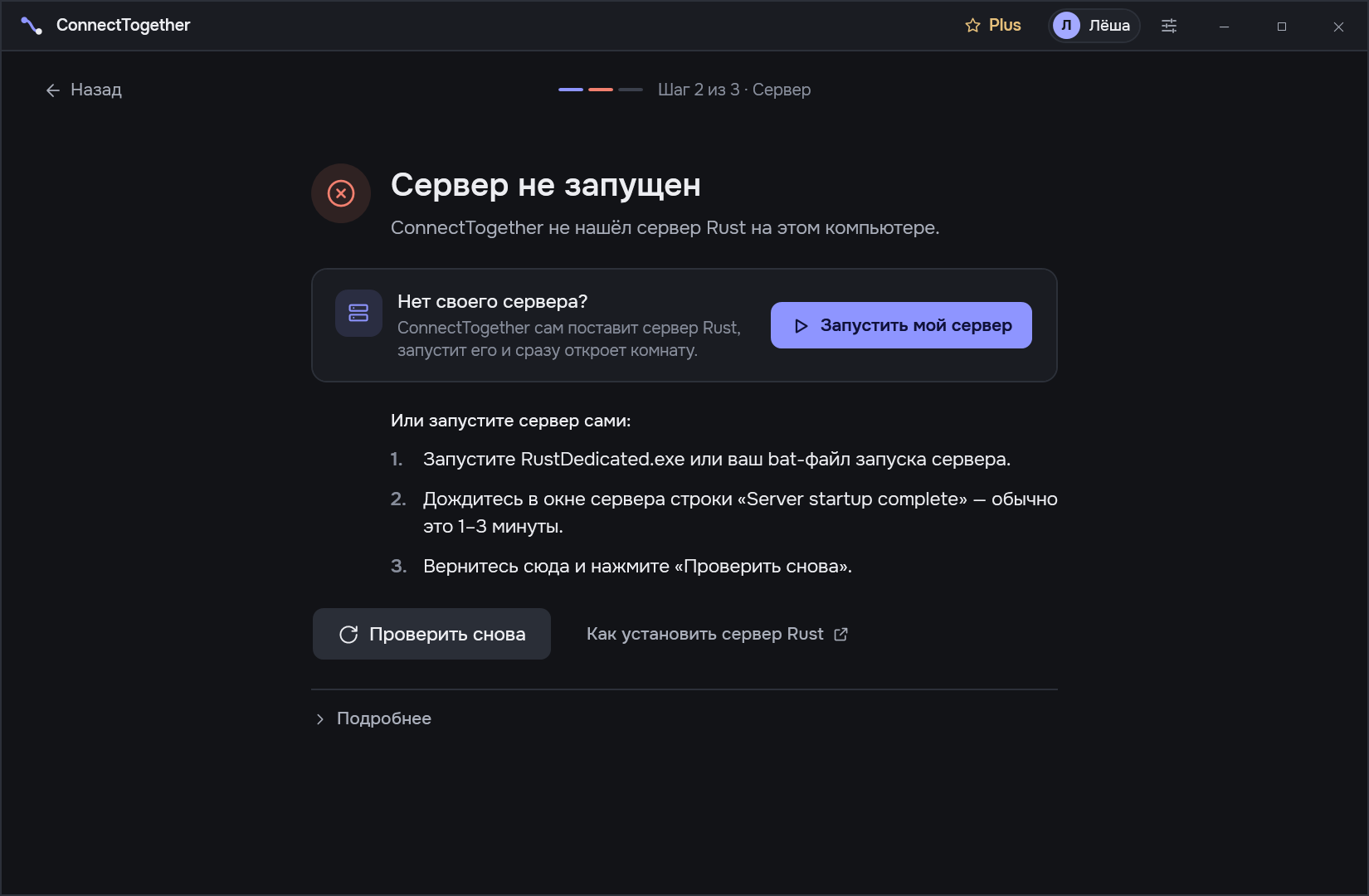
- If no server is found, click “Start my server”.
- Wait for SteamCMD to download the dedicated server.
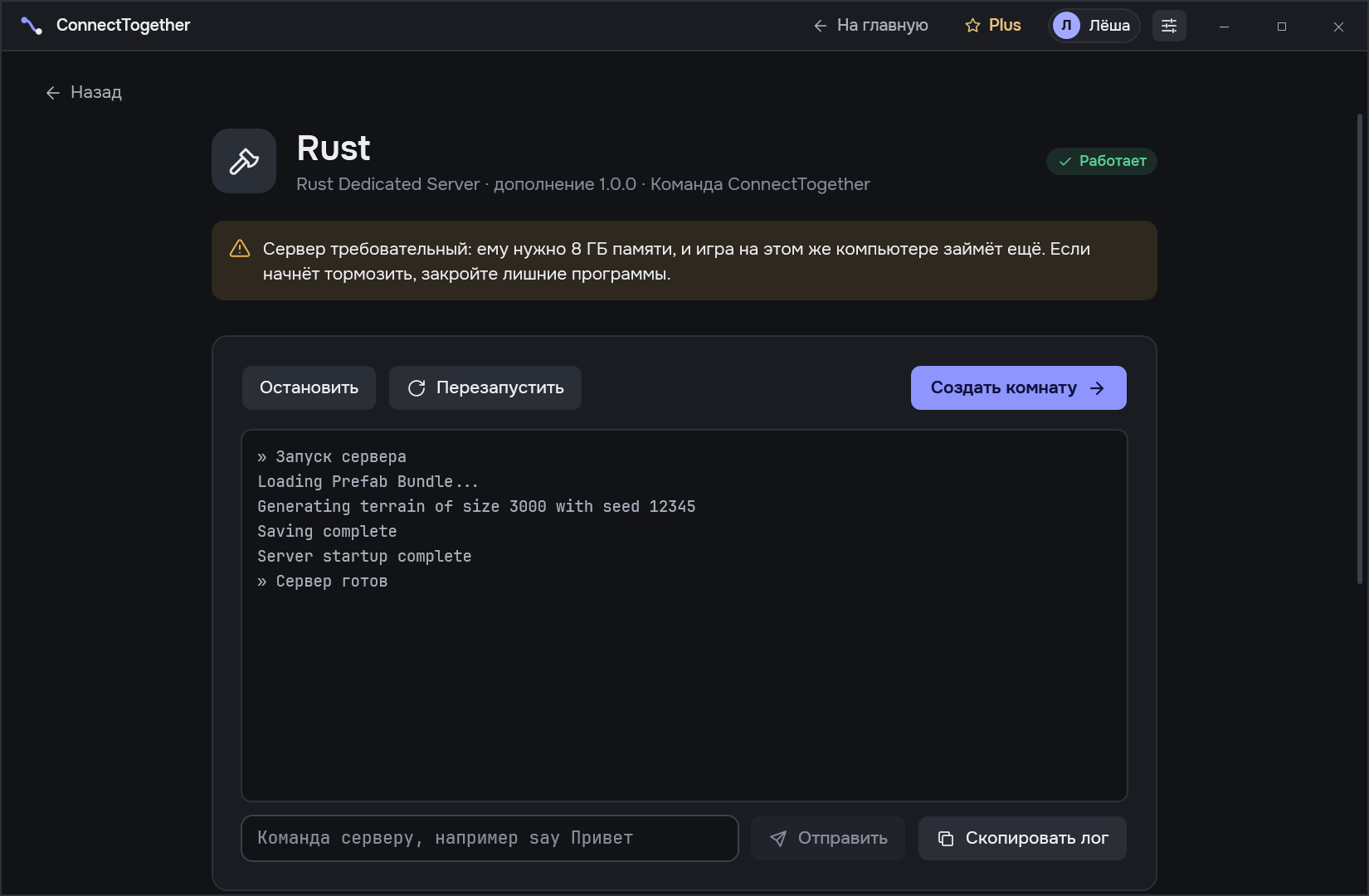
- Review the offered server settings and start it.
- Wait for readiness. Do not start a second instance during installation or world generation.
- When the room opens, share its code or invitation.
If startup takes a long time, read the server log. An installation error and slow world generation require different responses. Pressing Start again does not fix the underlying error.
Option 2: use an existing server
Start your server normally and wait until it is ready, then create a Rust room in ConnectTogether. If “Server is not running” appears, click “Check again” after startup completes.
If it is not found, compare the game port in the server and room settings. Game and RCON ports have different purposes. Friends do not need RCON access to join.
See the official Rust Wiki for manual installation.
Do not close the server window
If RustDedicated runs in a separate window, do not close that window during the game. Closing the process stops the server and disconnects every player. You can minimise it.
If ConnectTogether manages the server, keep it running and warn players before stopping or restarting it. Do not end the server in Task Manager just to hide its window.
The room, ConnectTogether and the game server must remain running. Closing the host's Rust client is different from stopping RustDedicated, but closing ConnectTogether still interrupts its connection.
How friends connect
- Start ConnectTogether and sign in through Steam.
- Join the host's room.
- Copy the complete command under “How to join the game”.
- Start Rust and press F1 to open its console.
- Paste the command, press Enter and wait for the world to load.
The command format is client.connect address:port.
This is a template, not a literal command to paste. Copy the actual line from ConnectTogether. It may contain 127.0.0.1; do not replace that with the host's public address.
Ending a session
Warn participants before stopping the server. Use ConnectTogether's stop controls if it manages the server. If you manage it manually, follow your server distribution's shutdown procedure and save the world.
The server console and the client's F1 console control different processes. Check which process a shutdown command affects before using it.
Common problems
- Server not detected: check that RustDedicated is running, startup completed and the correct game port is selected.
- The room opens but Rust will not join: copy the command again and check client version and server readiness.
- Players disconnected after a window closed: restart the game server, wait for readiness and check the room connection.
- Joining stopped after an update: check client, server and mod compatibility.
- Authentication or anti-cheat error: save the exact message. ConnectTogether does not bypass the game's own checks.
If the cause remains unclear, follow connection troubleshooting and include diagnostics when contacting support.
