

First confirm that payment completed and ConnectTogether uses the intended Steam account. Returning from the browser and updating Plus status are separate events.
Check these first
- Read the receipt or transaction history. An unfinished operation is not confirmed payment.
- Compare the current account with the one used to start the purchase.
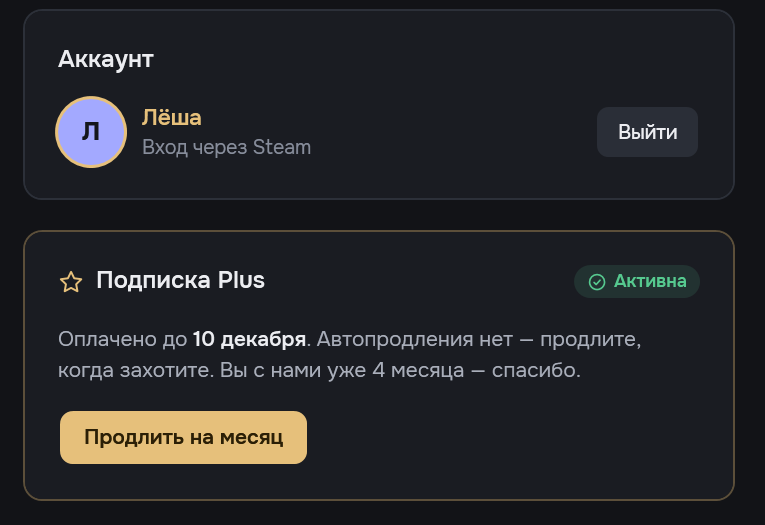
- Return to the application and check Plus status and expiry.
- If the application closed during payment, reopen it and wait for account data to refresh.
- Record all purchase-related messages.
Do not pay again just because the status has not refreshed. Check the first transaction first.
If Plus is already active
Check the expiry date: the new period may have been added to your existing time. If a particular feature is missing, specify which one: personal code, appearance, stream quality or another setting.
Troubleshoot game connection separately. Active Plus does not fix a stopped game server or incompatible versions.
What to send support
Prepare the payment date and time, amount, transaction or receipt ID, application version and details identifying the account used for Plus. Include the exact error and whether the application closed during payment.
Support does not need your Steam password, verification codes, CVV or full card details to check Plus. Do not post a receipt containing personal information in public chat.
If the payment page did not open
Check sign-in and ConnectTogether server availability. Do not send a manual transfer to details found elsewhere; use the page generated by the application for your purchase.
If the payment provider declined the transaction, save its message. Explain whether payment was confirmed or the error occurred beforehand.
