

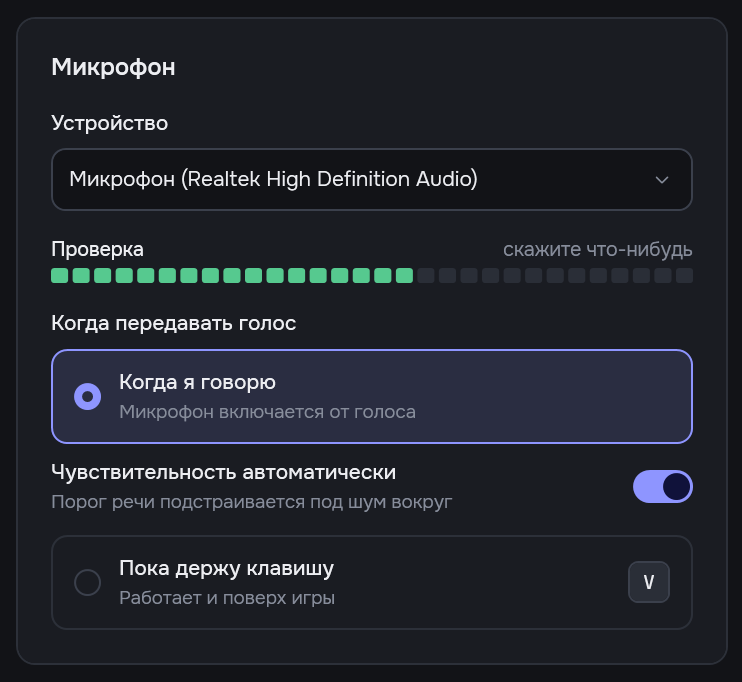
Open “Settings” → “Voice”. Start with devices: multiple headsets, USB microphones, monitors and virtual devices can cause the wrong source to be selected.
Select a microphone
- Open voice settings.
- Choose the physical microphone you intend to use.
- Start the test and speak normally from your usual distance.
- Check that the application receives your voice, not just noise or computer audio.
If there is no signal, check the cable, hardware mute button and Windows microphone privacy permissions. Desktop applications need the appropriate access.
Select an output device
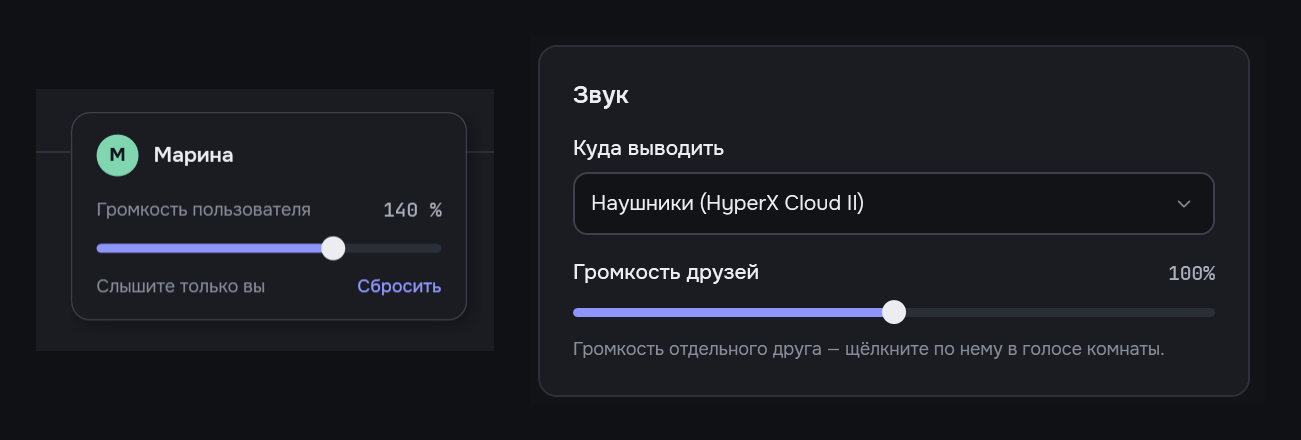
Choose the headphones or speakers you want to hear friends through. Check the selection again after connecting a new headset: device names and Windows' current output can change.
If you hear the game but not room participants, the internet is not necessarily the cause. Check ConnectTogether's output, its Windows volume and the voice-panel mute state.
Adjust volume
Set overall friend volume in voice settings. Change one person's volume through their card in the room's voice panel. If only one player is quiet, check their level first.
Automatic gain can help a quiet microphone. Turning friends' volume to maximum to compensate for a very weak source also amplifies background noise.
Test in a room
Join the voice channel with one friend, speak and ask whether you are clear. Test while the game is running as well.
With push-to-talk, hold the assigned key while testing. Selecting a microphone does not override your transmission mode.
Echo and unwanted sound
If friends hear themselves through you, use headphones and check that you selected a microphone rather than system audio. Avoid two devices transmitting the same voice.
For steady hum or fan noise, see noise suppression and voice modes. If voice disappears entirely, use audio troubleshooting.
