

An invitation locates an open ConnectTogether room. The game address appears after joining, so send invitations through a messenger rather than entering them in the game's server field.
Standard room codes
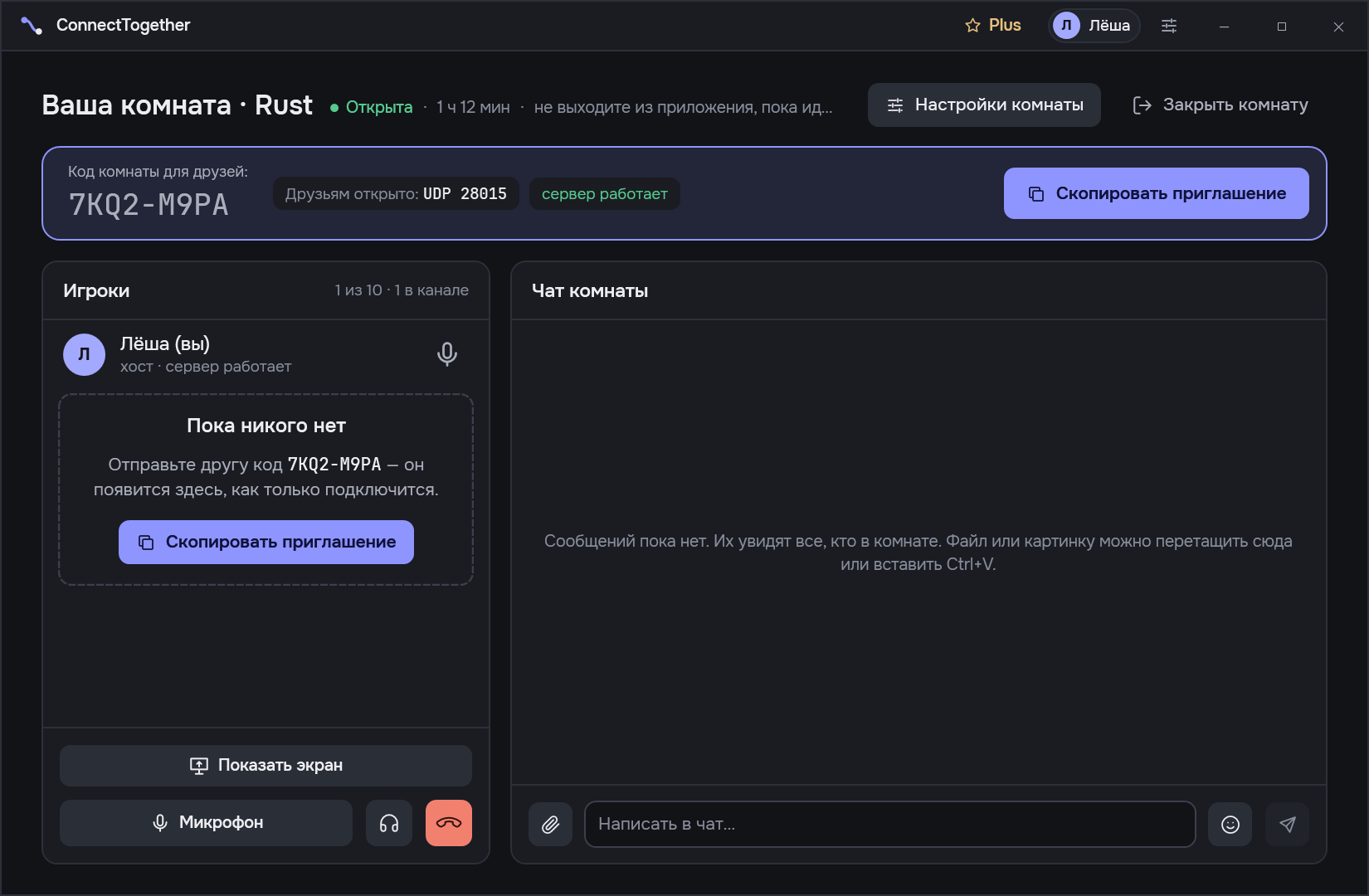
Copy the code from the invitation screen or open room. Ask your friend to paste it into “Join by code”. The ready-made invitation message includes both an explanation and the connection details.
A code refers to an active room. An old code cannot reopen a closed room. For a new session, use the invitation currently shown by the application.
Invitation links
Your friend opens the link in a browser and allows it to launch ConnectTogether if prompted. If the application is missing or automatic launch fails, copy the code from the invitation page and open the application manually.
Messengers and embedded browsers handle application links differently. Try a regular browser or use the code; both lead to the same room.
Personal codes with Plus
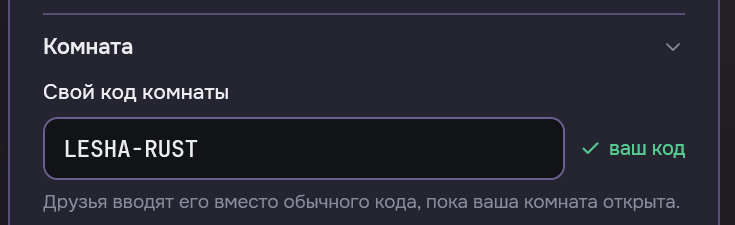
Plus lets you choose a memorable code in Plus settings. Follow the accepted format and wait for confirmation.
A personal code does not keep a server online. The host still has to open a room and keep the game server running. Send friends a new invitation after changing the code.
Joining through Steam friends
If the host enables “Show my rooms to friends”, friends may see the room on their home screen. If its card is missing, check that setting, the Steam account and the room's status. Use a regular invitation to test the connection.
If an invitation does not work
Ask the host to copy a fresh invitation from the open room. Check whether the room closed or the host changed. If a link fails, enter its code manually. If the code is accepted but connection fails, see connection troubleshooting.
Only send invitations to intended players: recipients can forward them. See room access for dealing with unwanted participants.
