

Every player needs ConnectTogether. It connects you to the host and provides voice, chat and data transfer. Install the game separately.
Before you install
- Use Windows 10 or 11 and the appropriate Windows build.
- Have access to your Steam account and a browser to confirm sign-in.
- Make sure the game and a compatible version run on your computer.
- Hosts must also meet the game server's memory, disk and CPU requirements.
You do not need Visual Studio or the .NET SDK to use a downloaded build. Those are development tools.
Download and run
- Open the ConnectTogether download page.
- Download the Windows application and wait for the download to finish.
- Run the downloaded file. If Windows reports an error, record the exact message.
- Avoid running several different copies of the application for the same session.
Sign in through Steam
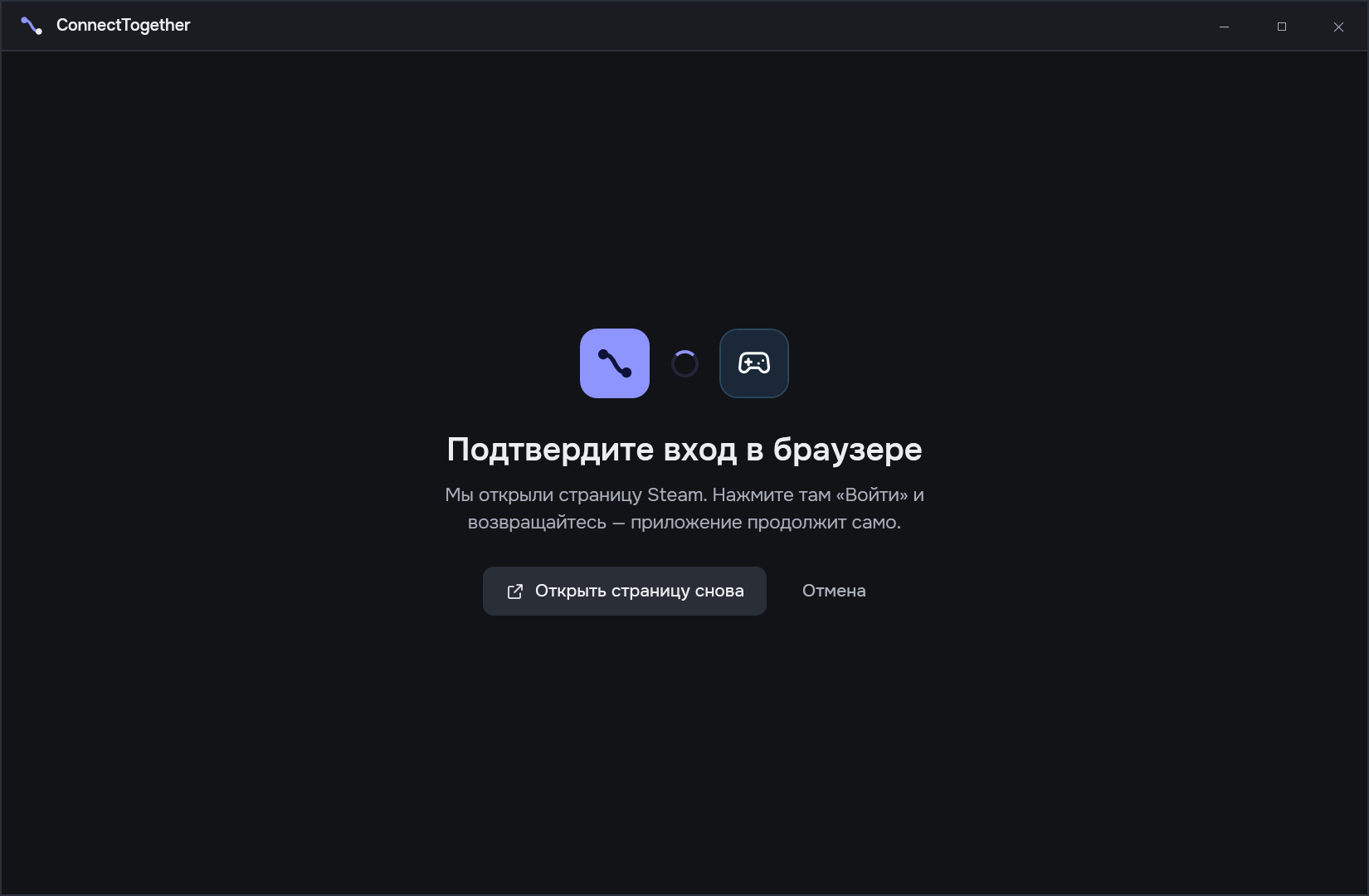
Click “Sign in through Steam”. Confirm sign-in on Steam's page in your browser, check the selected account, and return to ConnectTogether.
ConnectTogether does not ask you to enter your Steam password in its own form. It uses account verification and profile information. If the browser did not open, use the option to open the page again.
First launch
Check your account name. In voice settings, select your microphone and output device, especially if you have several headsets or monitors with audio.
Next, create a room or join a friend. Everyone must keep ConnectTogether running while using its connection.
Troubleshooting
If sign-in fails, check that browser verification completed and that you selected the correct Steam account. For launch and update errors, see updates and launch problems.
Do not start by deleting settings, server folders or saved games. Save the error message and identify the cause first.
